You Opened the Dashboard. Now what?
If you've ever logged into a hosting control panel for the first time, you've probably had that moment of quiet panic. You're suddenly looking at DNS settings, FTP accounts, cronjobs, and a wall of technical options that have nothing to do with building a website. You just want to get online.
PanelAlpha is different.
It's the dashboard behind HostAfrica's managed WordPress hosting, and unlike traditional hosting panels, it's built exclusively for WordPress. There's no DNS maze to wander through. No email server to accidentally misconfigure. What you get is a focused dashboard that shows your sites and surfaces the tools you'll actually reach for.
This article is your guided tour. By the end, you'll know where everything lives, what it does, and roughly when you'll use it. We won't go deep on every feature here as backups, staging, SSL, and plugins each get their own dedicated guide in this series. The goal is simply to get you oriented so the dashboard feels familiar before you need it.
If you haven't signed up yet, the HostAfrica WordPress hosting page is the place to start. The WP Starter plan gives you full access to everything covered here.
PanelAlpha vs. cPanel: Why the Difference Matters
Before we click anything, let's address the question that comes up most often.
Traditional hosting panels like cPanel are built to manage servers and they look like it. They're deeply configurable, which is genuinely useful if you need that level of control. But most WordPress site owners don't. What they get instead is a panel full of options they'll never touch, sitting between them and the site they're trying to build.
PanelAlpha takes the opposite approach. Think of cPanel as the full engine bay of a car where every component is exposed, every system accessible. PanelAlpha is the driver's dashboard: speed, fuel level, a few essential controls, and nothing irrelevant to the person behind the wheel. You're driving the same car. You just don't need to open the hood to do it.
One thing worth getting clear upfront: PanelAlpha sits alongside WordPress, not instead of it. You'll still use the regular WordPress admin (wp-admin) to write posts, build pages, manage themes and plugins - all the content work happens there. PanelAlpha handles the layer underneath: creating sites, managing backups, setting up staging environments, handling SSL, and controlling updates. The two never really overlap, which is why the division feels natural once you've used both for a few days.
The Sites Dashboard: Your Starting Point
Log in, and you land on the site's dashboard - a single screen showing every WordPress site on your account.
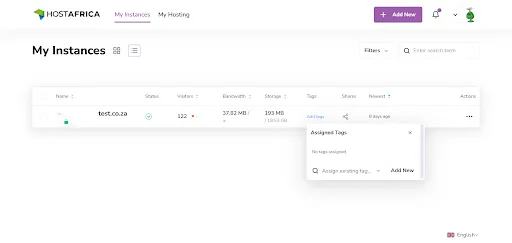
By default, sites display in grid view: each site gets a card showing its name, URL, and a quick status indicator. If you're managing several sites and prefer a denser layout, the list view toggle in the top-right switches to a table-style display. Most people stick with grid view until their site count grows enough that cards start feeling unwieldy.
That's also when the tags feature starts earning its place. You can assign any label you want to each site - "client," "personal," "in progress," whatever your system calls for and filter the dashboard down to just those sites. It's worth setting up early, before you need it. Retrofitting tags across twenty sites is the kind of small chore that's easy to avoid entirely if you start with a system.
Inside a Single Site: The Instance Overview
Click any site card, and you're taken to the instance overview - PanelAlpha's name for the summary screen of a single WordPress installation. ( “Instance" just means one WordPress site. You'll stop noticing the word after a day or two.)
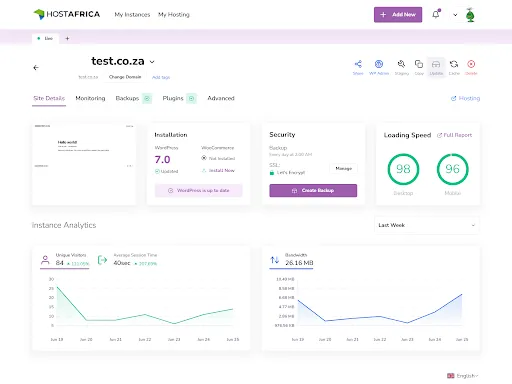
This is where you spend most of your time in PanelAlpha. The overview shows whether the site is healthy, the current WordPress and PHP versions, and any alerts worth acting on. Across the top or along the side on a smaller screen are tabs for every feature we're about to cover: Backups, Staging, Plugins, Domains, SSL, and more.
If something needs your attention, you'll usually see it here first.
One-Click Login: The Feature You'll Use Every Day
At some point, every WordPress site owner develops a muscle memory for the login routine: navigate to /wp-admin, type the username, type the password, wait. It doesn't take long, but it happens dozens of times a week, and it never gets more interesting.
PanelAlpha replaces the whole sequence with a single click.

From the instance overview, hit the WP Admin button and you land directly inside the WordPress dashboard - no credentials required, no redirect holding screen. The session is already authenticated. You're just in.
It sounds minor. It isn't. After a few weeks of using it, you'll notice yourself instinctively returning to PanelAlpha first rather than going directly to wp-admin. The one-click access quietly reorganises how you move between sites.
Backups: The Feature You Hope You Never Need
Nobody thinks carefully about backups until the moment they need one. The plugin that updated fine on every other site somehow breaks the homepage on this one. The page that someone deleted turns out to be the one with the most inbound links. The theme customisation that took three hours to build gets overwritten. These things happen - not constantly, but often enough.
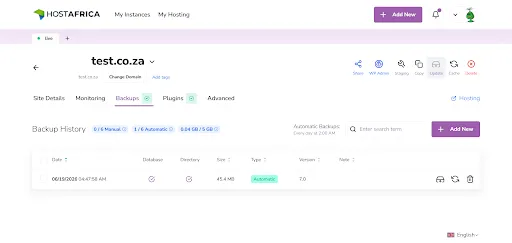
PanelAlpha runs daily backups automatically. Nothing to configure, nothing to schedule. But automatic backups have one limitation: they only capture where your site was at the time they ran. If you're about to do something significant - a major plugin update, a structural change, a design overhaul - it's worth creating a manual backup first from the Backups tab so you have a clean restore point from the exact moment before you touched anything.
Restoring is about as straightforward as it gets: pick the backup, confirm, and done. The dedicated backups guide covers what gets captured, how far back you can go, and the full restore process.
Staging: A Safe Place to Break Things
A staging site is a private, unpublished copy of your live website that exists purely for testing. Visitors can't see it. Search engines can't index it. It's a sandbox.
You make changes there first, update plugins, try a new theme, test a custom snippet - and only push to the live site once you've confirmed everything works. The practical value becomes obvious the first time a plugin update behaves unexpectedly. On staging, you catch it before it matters. On the live site, you're scrambling to fix a broken page while visitors hit it.
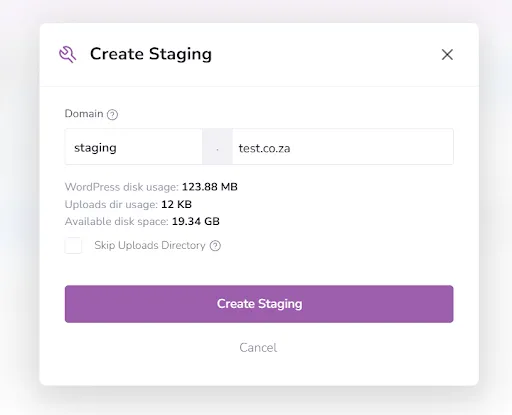
Spinning up a staging environment in PanelAlpha takes a few clicks from the instance overview. What's worth knowing is that it creates a proper clone of your site, not a stripped-down version, so what you test is genuinely representative of what will go live. The staging guide covers the setup and the push-to-live process in detail.
Plugins and Themes: Managed Without Leaving the Dashboard
WordPress plugin management has a quiet tax built into it: every time you need to check for updates, you log into wp-admin, navigate to the plugins screen, scan the list, and run through whatever needs updating. It's not difficult, but it adds up across multiple sites.
From the Plugins tab in PanelAlpha, you can see the update status of every plugin on a site at a glance and run those updates without touching the WordPress admin. The same goes for themes. There's also a searchable library for installing new plugins - find what you need, install it, and it shows up in WordPress immediately.
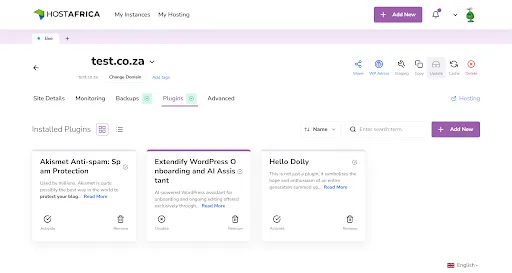
Where this saves real time is across multiple sites. If you manage a handful of client WordPress installations and want to check plugin update status across all of them without logging into each one separately, PanelAlpha is the faster path.
Updates: Keep WordPress Current Without Thinking About It
Outdated WordPress core files are one of the common vectors for site compromises not because the vulnerabilities are exotic, but because people fall behind on updates and never notice. PanelAlpha's automatic update controls are the fix for this.
From the Updates section inside a site, you can see the current WordPress core version and configure automatic updates for core, plugins, and themes independently. That last part matters: not everything should auto-update on the same schedule. A core security patch is low-risk and high-importance - let it run automatically. A major version of a plugin that you know has historically caused conflicts? That's one you want to review first.

The configuration that works well for most sites: automatic updates on for minor releases, manual review for major ones. It keeps the security baseline covered without putting you in the position of discovering a breaking change after it's already live.
SSL: Already Done
SSL is what puts the padlock in the browser bar and the “HTTPS” at the start of your URL. It encrypts the connection between your site and whoever's visiting it. Browsers now flag sites that don't have it, and it's a factor in how search engines assess a site - so it's not optional.
HostAfrica provides a free SSL certificate automatically when you create a site. By the time you're looking at the dashboard for the first time, it's already there and already working. Most users never need to touch the SSL tab at all during normal operation.
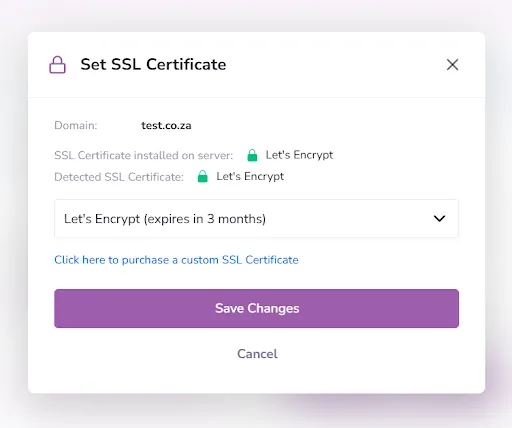
The tab becomes relevant when you're adding a custom domain or migrating a site from another host - situations where the certificate needs to be reissued for a new domain. The domains and SSL guide covers both scenarios.
Domains: Connecting Your Address
The Domains tab is where your site gets its web address.
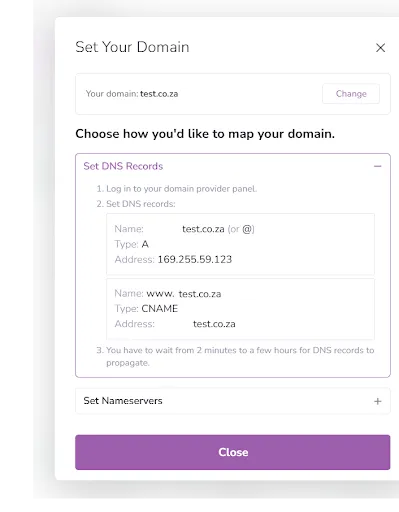
If your domain is registered through HostAfrica, pointing it at your new WordPress site is handled with a few clicks. If it's registered elsewhere - Namecheap, GoDaddy, Cloudflare, wherever you bought it - this tab gives you the nameservers details you'll need to update on your registrar's side. That part (updating nameservers with an external registrar) is a one-time task per domain, and it usually takes a few hours to propagate after you've done it. Nothing to worry about, but worth knowing so you're not surprised by the delay.
Cache and Performance: When Your Changes Don't Show Up
Here's a scenario that catches new WordPress users off guard: you update something on your site, refresh the page, and nothing has changed. The old version is still showing. You update again. Still nothing. The site looks like it hasn't been touched.
What's usually happening is caching. PanelAlpha's caching layer saves a static version of each page so it loads faster for visitors but that same saved version keeps serving until the cache is cleared. Once you've made changes and you want visitors to see them immediately, go to the Performance section and clear the cache. The updated version will show up on the next load.
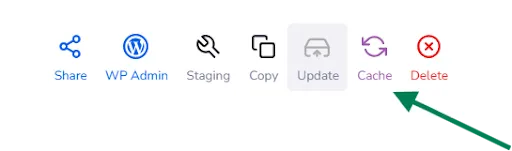
It's a quick action that becomes intuitive fast. The monitoring and performance guide covers caching in more depth, including how to configure cache behaviour if you have specific needs.
Monitoring: The Tab You'll Mostly Ignore (and That's Fine)
PanelAlpha monitors whether your site is up and sends an alert if it goes down. Most of the time, the monitoring tab is uneventful and that's exactly the point.
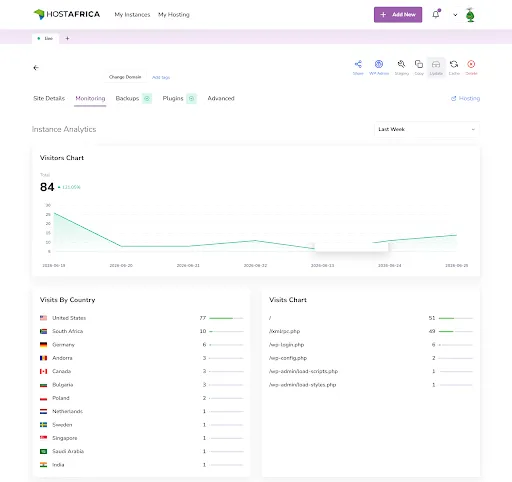
The one thing worth doing early on is confirming that monitoring alerts are pointed at an email address you actually check. It's the kind of setup step that's easy to skip and easy to regret; finding out a site went down because a hosting issue went unnoticed for hours is an avoidable problem.
Collaborators: Giving Access Without Giving Up Control
Almost every WordPress site eventually needs an outside hand - a developer to add a feature, a designer to rework the layout, a contractor to handle content updates.
The default approach most people fall into is sharing their WordPress admin credentials. It works, technically, but it's sloppy: the developer now has access to everything, there's no easy way to revoke it without changing the password, and you can't tell from the activity log who did what.
PanelAlpha's Collaborators feature handles this properly. You invite someone by email and assign them a specific role - one that scopes their access to what they actually need. When the project is done, you remove them. Your credentials stay yours; their access was always temporary and limited. It's a small process improvement that matters more the more people you bring into your sites.
You Now Know Your Way Around
Here's a quick reference for what's where:
- Sites dashboard - your full list of WordPress sites, filterable by tag
- Instance overview - the summary screen for each site, with health status and access to all features
- One-click WP login - direct access to the WordPress admin, no credentials required
- Backups - automatic daily backups, plus manual backups on demand with point-in-time restore
- Staging - a full clone of your live site to test changes before they go live
- Plugins and themes - install, update, and manage both across all your sites without entering wp-admin
- Updates - independently configurable automatic updates for core, plugins, and themes
- SSL - provisioned automatically; revisit the tab only when adding a new domain
- Domains - connect domains registered with HostAfrica or get nameserver details for external registrars
- Cache and performance - clear the cache when your changes aren't showing up for visitors
- Monitoring - uptime alerts that run in the background and speak up when something's wrong
- Collaborators - scoped access for developers, designers, and other contributors, without sharing your credentials
The best way to make any of this concrete is to open the dashboard while you're reading and click through what's there. The layout becomes obvious once you're looking at it and you'll find your way back to things much faster the second time.
If you haven't launched your first site yet, the next guide walks through the full setup from scratch. Already running a site elsewhere and want to move it over? There's a dedicated migration guide for that.
This article is part of an ongoing series on getting the most out of PanelAlpha and HostAfrica's managed WordPress hosting.